
On this page
We build Linger, a native macOS image organizer for design references on Apple Silicon. Because no single organizer fits camera shoots, Finder folders, and visual research equally well, this guide routes you honestly to the right tool first.
Quick Verdict — Organizing 10,000 Family Photos vs. Creative References on Mac
- Organizing 10,000+ personal or family photos from iPhone: Stick with Apple Photos (free on macOS; faces, places, and timeline search) or self-hosted PhotoPrism. Do not move family albums into a design-reference app.
- Browsing RAW camera shoots & existing Finder folders in place (zero import): Choose ApolloOne (macOS 14+, native Finder Tags + XMP), Adobe Bridge (free with Adobe ID), or XnView MP.
- Collecting design inspiration, screenshots & studio lookbooks (no folder chores): Choose Linger (Apple Silicon, macOS 14+, $39 Personal / $79 Lifetime one-time) so 100% local references stay under your complete control offline without mixing into your personal Apple Photos roll. Pair it with our digital vision board sequencing method.
Start with the four Mac image-organizing workflows
Most frustration with Mac photo and image apps happens when you drop the wrong job into the wrong storage model. Pick the track that matches your files.
- Personal & family camera rolls. Stick with Apple Photos. It is built into macOS, organizes automatically by people, places, and dates, and syncs across iPhone and iPad via iCloud. See our step-by-step guide to organizing photos on Mac.
- Existing Finder folders & RAW shoots. Choose an in-place Mac folder browser such as ApolloOne, Adobe Bridge, or XnView MP so your files stay inside your own directory tree without database import and open anywhere.
- Local indexed photo catalogs without Adobe subscriptions. Look at Pluto Photos for a lightweight Apple Silicon catalog over ordinary folders, or digiKam and Mylio Photos for larger multi-decade archives (covered in our image management software comparison).
- Design references, UI screenshots, and visual research. Choose a zero-config, 100% local reference library like Linger (native Apple Silicon, macOS 14+). Like Obsidian for local Markdown files, your media files and inspectable SQLite database live completely on your Mac (accessible anytime via Reveal in Finder)—except automatic color palettes and local Apple Vision OCR work out of the box with no API keys or plugins, while optional AI mainly powers deeper Recall alongside persistent Project Canvases.
How each Mac image organizer stores your files and metadata
The clearest way to compare Mac image organizers is by where the files live and whether your tags and notes leave the app cleanly. The table compares desktop editions; prices for paid apps can vary by storefront.
| App | File Storage Model | Metadata & Indexing | macOS & Silicon | Pricing |
|---|---|---|---|---|
| Apple Photos | Managed system package (optional iCloud sync) | Faces, dates, albums, keywords; Smart Albums stay Mac-only | Built into macOS (Intel & Apple Silicon) | Free with macOS (iCloud storage paid separately) |
| ApolloOne | In-place Finder folders (no database import) | Finder Tags, star ratings, color labels, EXIF/IPTC written as XMP | macOS 14 Sonoma+; Apple Silicon supported | Free download; paid Standard, Pro and Max editions |
| Adobe Bridge | In-place Folders panel (optional Photo Downloader) | Star ratings, labels, IPTC/XMP metadata exchange | macOS 14+; supported Intel and Apple Silicon Macs | Free to download & use (Adobe ID & activation required) |
| XnView MP | In-place folder browser + optional SQLite catalog | Star ratings, color labels, IPTC/XMP sidecars & hierarchical keywords | macOS 13+ (v1.12.3); native universal Intel/Apple Silicon | Free for private/edu/nonprofit; 29.00 € per seat for company use |
| Pluto Photos | Local catalog indexing ordinary folders | Local tags, ratings, color labels; Pro adds local contextual search | Apple Silicon Macs on macOS 11+ | Free up to 500 photos / 1 library; Pro $29 one-time (2 devices, lifetime updates) |
| Linger | 100% local copies + SQLite (Reveal in Finder; originals untouched) | Zero-config auto palettes & local OCR; optional AI mainly for deeper Recall; source URLs, optional notes & Canvases | Native Apple Silicon (M-series), macOS 14+ | 7-day free trial (+1 in-app 7-day extension); $39 Personal (1 yr updates) / $79 Lifetime |
When an in-place Finder browser or local catalog is the better choice
If your photos already live inside carefully named Finder folders—or on external SSDs and USB drives that you never want copied into a separate database—an in-place browser saves time and prevents duplicate storage.
ApolloOne brings fast in-place Mac browsing with Finder Tags & XMP
ApolloOne requires macOS 14 Sonoma or later and operates directly on folders and files in place with zero database import. Unlike many cross-platform viewers, its documentation explicitly supports native macOS Finder Tags alongside star ratings, color labels, batch renaming (Standard edition or higher), and EXIF/IPTC editing written as XMP. The US App Store listing shows the current subscriptions and perpetual licenses.
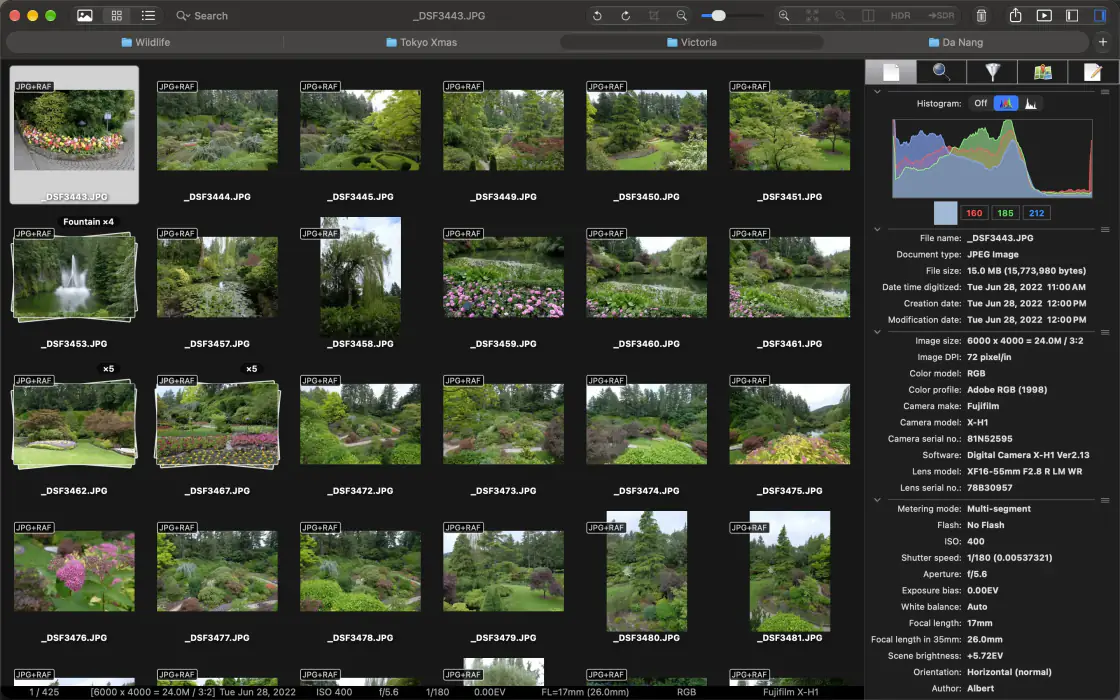
Adobe Bridge & XnView MP offer free or low-cost folder control
Adobe Bridge is completely free to use with an Adobe ID (no Creative Cloud subscription required) and excels when you want classic folder browsing, batch renaming, and XMP metadata handoff with Photoshop or Lightroom. XnView MP (v1.12.3 for macOS 13+, native universal Apple Silicon/Intel DMG) pairs broad format browsing with an optional SQLite catalog and XMP sidecar writing—free for private, educational, and nonprofit use, or 29.00 € for a single commercial license.
Pluto Photos builds a local catalog over ordinary folders
Pluto Photos takes a middle path for Apple Silicon Macs (macOS 11+). It builds a local catalog indexing your folders while keeping original files in ordinary directories. It is not a zero-import Finder viewer, so evaluate it as a lightweight catalog alternative ($29 USD one-time for Pro, with a free tier capped at 500 photos and 1 library).
Need heavy multi-format asset management for 3D models, fonts, PSDs, and cross-platform Windows/Mac workflows? Compare Eagle, Muse, Atlas, and Linger in our Eagle alternatives for Mac guide.
Where Linger fits for design references
Folder browsers work brilliantly when a file’s filename or shoot date tells you what it is. They break down the moment you save 400 unnamed screenshots, typography spreads, UI clippings, and product references named Screenshot 2026-11-19 at 10.42.18.png—where forcing yourself to file every capture into folders and hand-type tags turns inspiration into admin work.
Linger (for Apple Silicon, macOS 14+) skips folder trees and manual tagging chores altogether.
- Frictionless capture without breaking focus. Paste any screenshot with ⌘V, drop files onto the Linger window, batch-import folders, or save web images alongside their original Source URL using the browser extension (Chrome, Edge, Arc, and Brave). Static images plus GIF, MP4, MOV, M4V, and WebM moving references are supported, while originals in Finder remain untouched.
- Zero-config local indexing first; AI stays optional for deeper Recall. Like Obsidian keeps notes in your own folder, Linger keeps 100% of your files and inspectable SQLite index locally on your Mac (one click on Reveal in Finder opens your library folder). Unlike Obsidian, you need no plugins or folder hierarchy to maintain: color palettes and local Apple Vision OCR work automatically out of the box offline. When your archive grows and you want deeper semantic Recall, connect free local Ollama or your own vision model in Settings to add machine tags and facets without altering optional Feeling notes.
- Recall by facets, clues, or similar images. Press ⌘F in the library to filter immediately, or open Recall to combine visual facets, palette colors, OCR text, machine tags, and source filters—or click Find similar / Recall similar to bridge related references. Optional on-device visual recall (~865 MB DigUp runtime) and model connections stay off until enabled under Settings → Recall & AI (read the Recall setup guide).
- Persistent Project Canvases with direct exports. Pull related references onto persistent boards under Projects, add sticky notes side by side, and export any direction straight to PDF, SVG / Figma, Copy SVG, or DESIGN.md for clients and coding tools.
Honest boundaries and pricing. Linger is a native Mac app for Apple Silicon requiring macOS 14 or later, with no Windows or iOS app and no built-in cloud sync (each Mac keeps its own local folder that you can inspect in Finder and back up with Time Machine). Try Linger free for 7 days, no card required—eligible users can extend the trial once for another 7 days in the app. Buy once and keep using eligible versions offline through $39 Personal (2 Macs, includes one year of updates with optional renewal) or $79 Lifetime (4 Macs, all future updates included). See full pricing & license terms or read the 5-minute getting started guide.
When Apple Photos stops fitting and how to split your workflow cleanly
Apple Photos remains the best zero-effort home for family pictures synced from your iPhone. In real Mac user discussions, however, two structural friction points repeatedly push people to look for a second organizer.
- Mixing work screenshots and visual research into your personal camera roll. UI clippings, brand moodboards, and client references clutter family timelines, while Apple Photos does not preserve web source URLs or a dedicated canvas for active briefs.
- Database opacity and sorting fatigue. Photos added to albums remain in Recents/Library, making visual progress harder to track without building Smart Albums (which do not sync to iPhone or iPad), and users who organize shoots in Finder often resist repeatedly importing temporary files into a closed package.
The cleanest fix is to stop asking one app to do every job. Leave personal photos in Apple Photos, keep Finder clutter tidy with our Mac screenshot organization guide, and move creative references into a dedicated folder-free local library.
Frequently asked questions
What is the best free image organizer for Mac?
Apple Photos is the easiest free default for everyday personal and iCloud photo libraries. If you want to browse existing Finder folders without importing into a database, Adobe Bridge is free to use (with an Adobe ID) and XnView MP is free for private, educational, and nonprofit use.
What is the difference between a photo organizer and a design reference image organizer?
Photo organizers center on camera EXIF dates, faces, places, RAW culling, and family albums. A design reference library like Linger removes folder maintenance and manual tagging chores by indexing color palettes, local OCR, saved source URLs, optional model-generated tags and aesthetic facets, and persistent Project Canvases.
Which Mac image organizers let me keep files in existing Finder folders?
ApolloOne operates directly on files and folders in place with no database import and supports Finder Tags plus XMP/IPTC metadata. Adobe Bridge browses filesystem folders directly and exchanges metadata via XMP, while XnView MP offers direct folder browsing with an optional SQLite catalog.
Does Linger move or modify my original files in Finder?
No. Linger copies imported images, links, and notes into its managed local library on your Mac while leaving original files in Finder untouched. Moving references in GIF, MP4, MOV, M4V, and WebM formats are also supported without altering files in their original folders.
How should I back up an image library on Mac?
Follow the 3-2-1 rule by keeping three copies across two different storage media, such as your Mac plus an external drive via Time Machine, along with one off-site copy. Remember that iCloud Photos is a sync service rather than a standalone archival backup.