 linger
On this page
Choose the path you need
Recall has a useful default: searching the words already saved with your references. Local image recall and a connected model add different capabilities, with separate setup and data handling.
| Path | Use it for | Setup |
|---|---|---|
| Saved text | A title, note, tag or recorded source clue | Ready immediately; no model download required |
| Local visual recall | Visual descriptions of indexed images | Point Linger to a prepared runtime folder; runs 100% locally on your Mac |
| Connected model | Optional AI analysis and review of selected candidates | Optional API key or external agent connection; keeps model output distinct from your notes |
Find a saved clue first
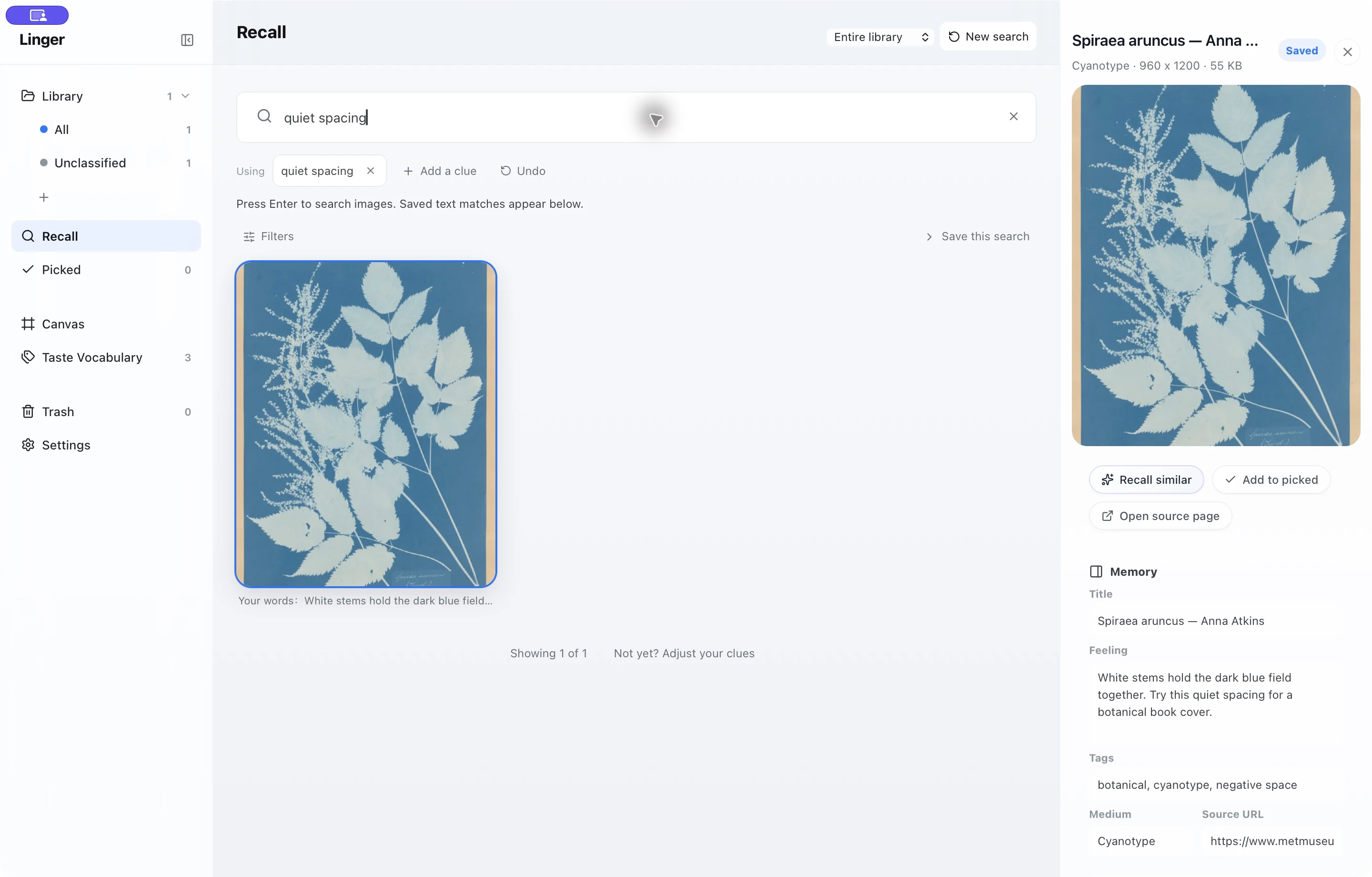
- Open a reference, write a distinctive phrase in Feeling and click Save.
- Open Recall, choose Entire library and clear restrictive filters.
- Type the phrase. Saved-text matches appear below; inspect the quoted clue on a result.
In the tutorial sample, “quiet spacing” finds the saved botanical image. This does not require pressing Enter. Enter and the search button request image recall; with both optional paths off, the app asks you to enable local recall or connect a model.
Enable local recall when its runtime is ready
In Linger 0.5.2, experimental local visual recall runs on-device using an image embedding model and is off by default. Setting this up requires pointing Linger to a prepared runtime folder (around 865 MB of model files), which is not bundled with the desktop download.
- Open Settings → Recall & AI.
- Make sure you have a prepared DigUp runtime folder compatible with your Linger build. For current experimental setup instructions, contact support.
- Select Enable local recall. When prompted by Select the prepared DigUp folder, choose that runtime directory.
- Allow initial indexing to finish before testing visual queries; newly imported images will also be indexed locally.
- Return to Recall, enter a visual description and press Enter or click search to browse visual matches.
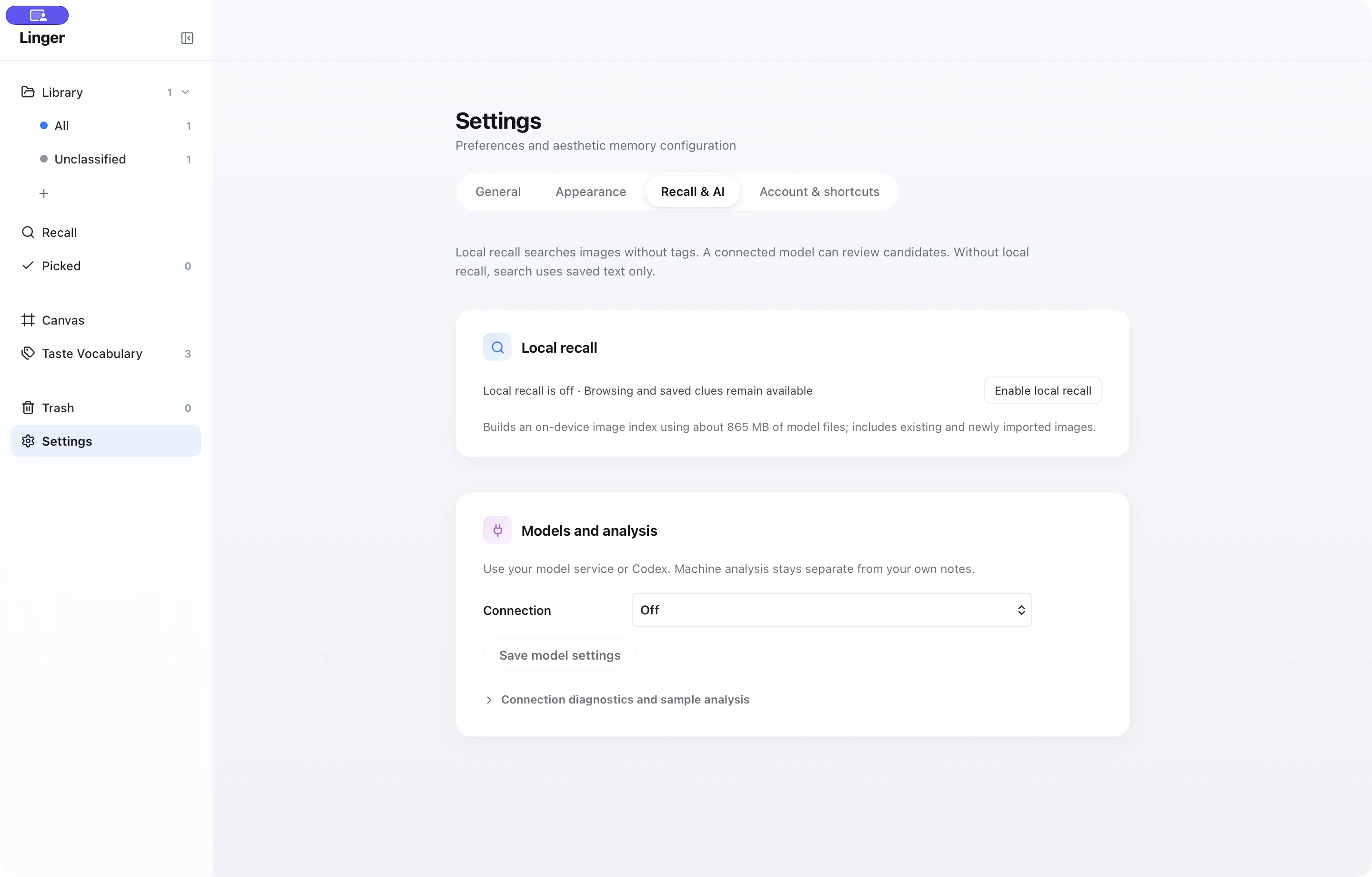
Local recall builds and searches its image index on your Mac. With an external model enabled, Recall can send your search description, up to 24 candidate previews and their saved records to the chosen provider for review.
Choose model access separately
Under Models and analysis, Connection starts at Off. Choose your provider or agent, enter its settings and select Save model settings. Use Connection diagnostics and sample analysis to try the connection with one reference.
The chosen provider or agent receives the previews and saved records used for the task. Its analysis is stored separately from your own notes. For MCP tasks, your external agent needs to be running to use Linger’s tools.
If you also enable automatic analysis of new references, their previews or text and saved records can be sent through the selected connection as they are added. This setting is separate from running a Recall search.
Connecting an external service is optional. With the model connection off, saved-text search and configured local visual recall process your search on your Mac.
When a search does not work
“Enable local recall or connect your model”
You requested image recall while both paths were off. Use the saved-text matches already shown, or complete one of the optional setups above.
No result for a word you saved
Search the title first, set scope to Entire library, clear filters and check that the Memory edit was saved. A word visible on an image is not necessarily saved text.
The local folder is rejected or indexing fails
Check that the selected folder is the prepared runtime expected by the setup. If an issue persists, send support your app version, macOS version and the error message so we can help troubleshoot.
The results look plausible but the target is absent
Confirm that the intended image is in the active library and has been indexed. Try removing an uncertain source or date restriction, and refine your visual description with distinct colors, objects or layout cues.
Local-first architecture
Recall is designed around a simple principle: your reference collection is private and personal. Text search matches your own notes and tags on your Mac. Local visual recall runs on Apple Silicon without relying on cloud services or external servers.
To learn more about how the search engine was developed and tested against regressions, read Finding an image you can almost remember. If you are new to Linger, start with Your first reference in Linger to explore the save-and-find workflow.
Try a word in the sample library.
Search saved notes, titles and tags. Try serif or light.
macOS 11+ · Apple Silicon (M-series) · 14-day trial after email sign-in