 linger
On this page
Before you begin
Start with one image you would like to use as a reference. You do not need to move your existing library, make a folder system or connect an AI service to follow this guide.
The desktop download is for Apple Silicon Macs running macOS 11 or later. Open the disk image, move Linger to Applications and launch it. Sign in with your email verification code. Your first sign-in starts the 14-day full trial; no card is required and it does not charge automatically. See trial and license details.
Want to explore before installing? Try the browser demo to browse and search a sample collection right away.
1. Import one image
Open Library → All. In an empty library, click Choose inspiration files. Otherwise open Add inspiration → Choose inspiration files. Select an image in the file picker and click Open.
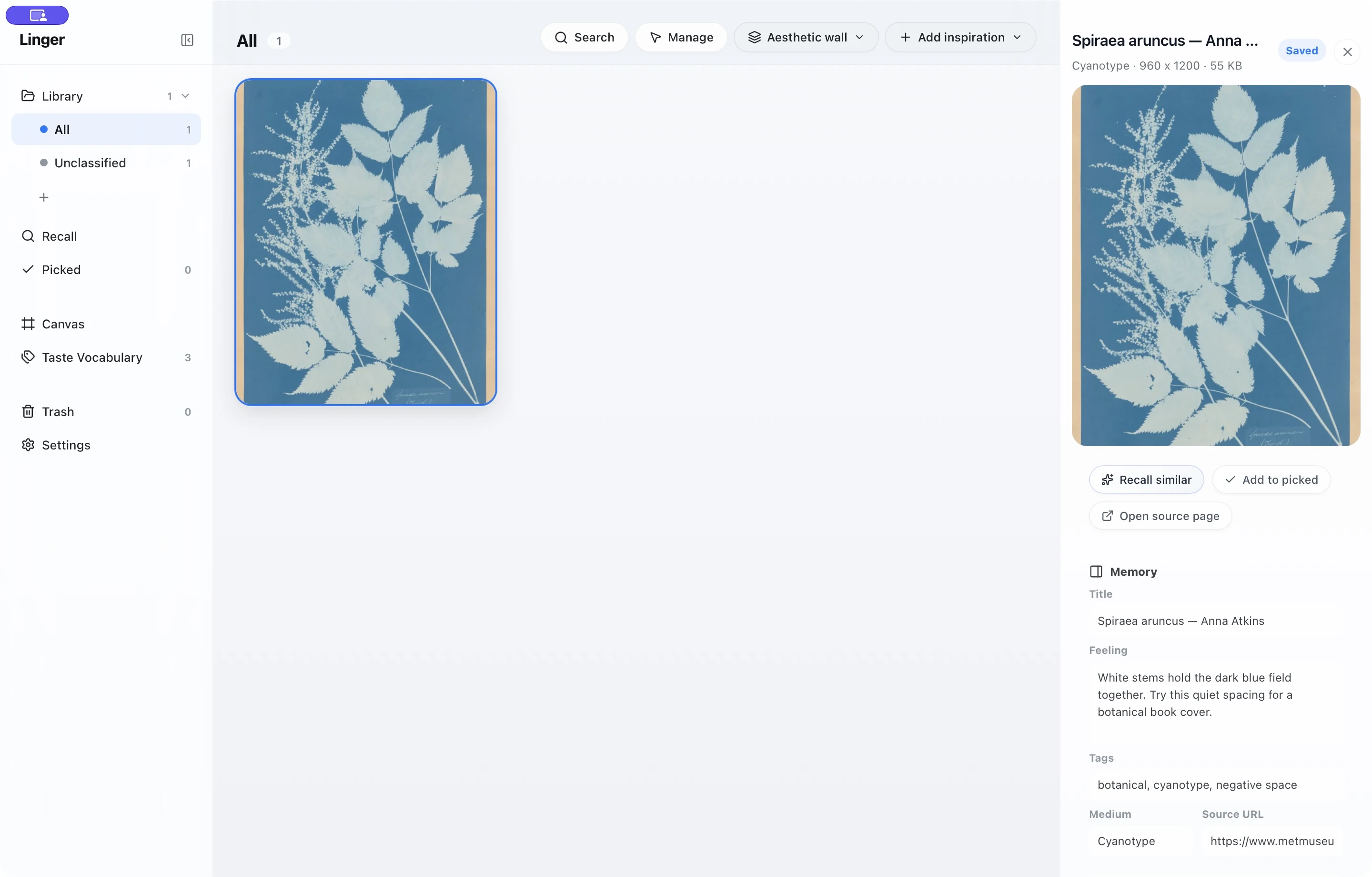
When the image appears, select it to open its Memory fields in the Inspector on the right. Our example uses a public-domain cyanotype by Anna Atkins.
Linger creates a managed local copy while leaving your original file untouched, so you can freely organize references without worrying about moving or breaking files on your Mac.
2. Save what caught your eye
Give the reference a readable Title. In Feeling, write one detail you might remember later. Tags are optional; use a few useful words rather than a complete inventory of objects.
We set the title to Spiraea aruncus — Anna Atkins, the medium to Cyanotype, and the tags to cyanotype, negative space, botanical. In Source URL, we pasted the museum object page. Click Save to keep these details with the image.
3. Find it using the note
Select Recall in the sidebar. Keep Search scope on Entire library and start without filters. Type quiet spacing. Saved text matches appear below the search field as you type; the result in our example quotes the note that matched.
Saved-text search works as you type. Enter or the search button requests image recall, which you can set up separately in Settings → Recall & AI.
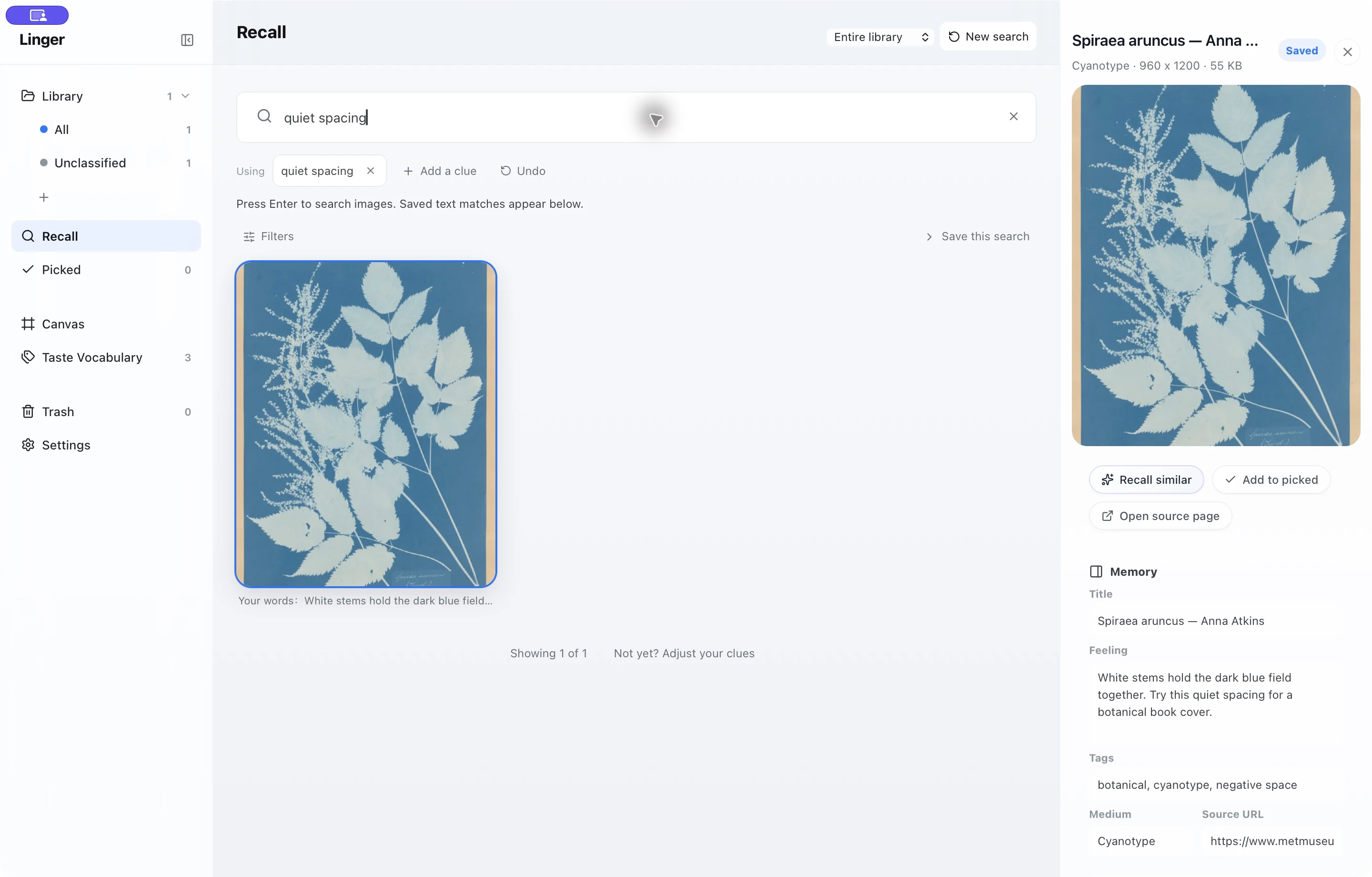
If nothing matches, check the saved title, clear restrictive filters and try one exact word from the note. Visual descriptions that were never saved as text may need the optional local recall setup.
4. Use it in a project
When you return to the book-cover idea, search for quiet spacing and open the reference. The image, note and museum link give you the context for trying that spacing in your own layout.
Add a few references for your current project. Use Add to picked for a working selection, or New collection for a stable folder.
Tip: Canvas is a session workspace for arranging ideas visually. Save thoughts you want to revisit in the reference’s Memory fields.
Keep the library safe
Settings → General → Library location shows the active library and provides Show in Finder. Back up the complete managed library folder, including its database and copied files. Quit Linger before making a manual copy so the files stay consistent.
Linger has no built-in cloud sync. Keep a separate backup of the managed library and check that you can restore it; a folder of original images alone does not preserve your notes, tags and organization.
For missing imports, first check whether the item appeared in All or Unclassified. For a missing source, use the source-link guide. For a library that is hard to search, follow the organization workflow.
Artwork & guide notes
The sample image used in this walkthrough is Anna Atkins’s Spiraea aruncus (1851–54), a public-domain cyanotype from The Metropolitan Museum of Art’s collection. The observation about botanical book covers is our own sample note to illustrate how personal thoughts connect with references.
This guide covers Linger 0.5.2 for macOS. The screenshots were captured in a development build based on that release and show the Memory and saved-text Recall workflows described here.