
On this page
Match each kind of photo to its right home on Mac
If you only need to organize family photos, iPhone snapshots, or RAW photography shoots, you do not need a design reference app. Keep personal memories in Apple Photos and camera shoots in dated Finder folders (or Lightroom Classic / ApolloOne). Use a dedicated local reference library like Linger specifically for visual inspiration, texture photos, typography scans, and UI captures—with no folder trees or manual tagging chores.
| Home on Mac | Best For | How You Find Images Later | Where It Falls Short |
|---|---|---|---|
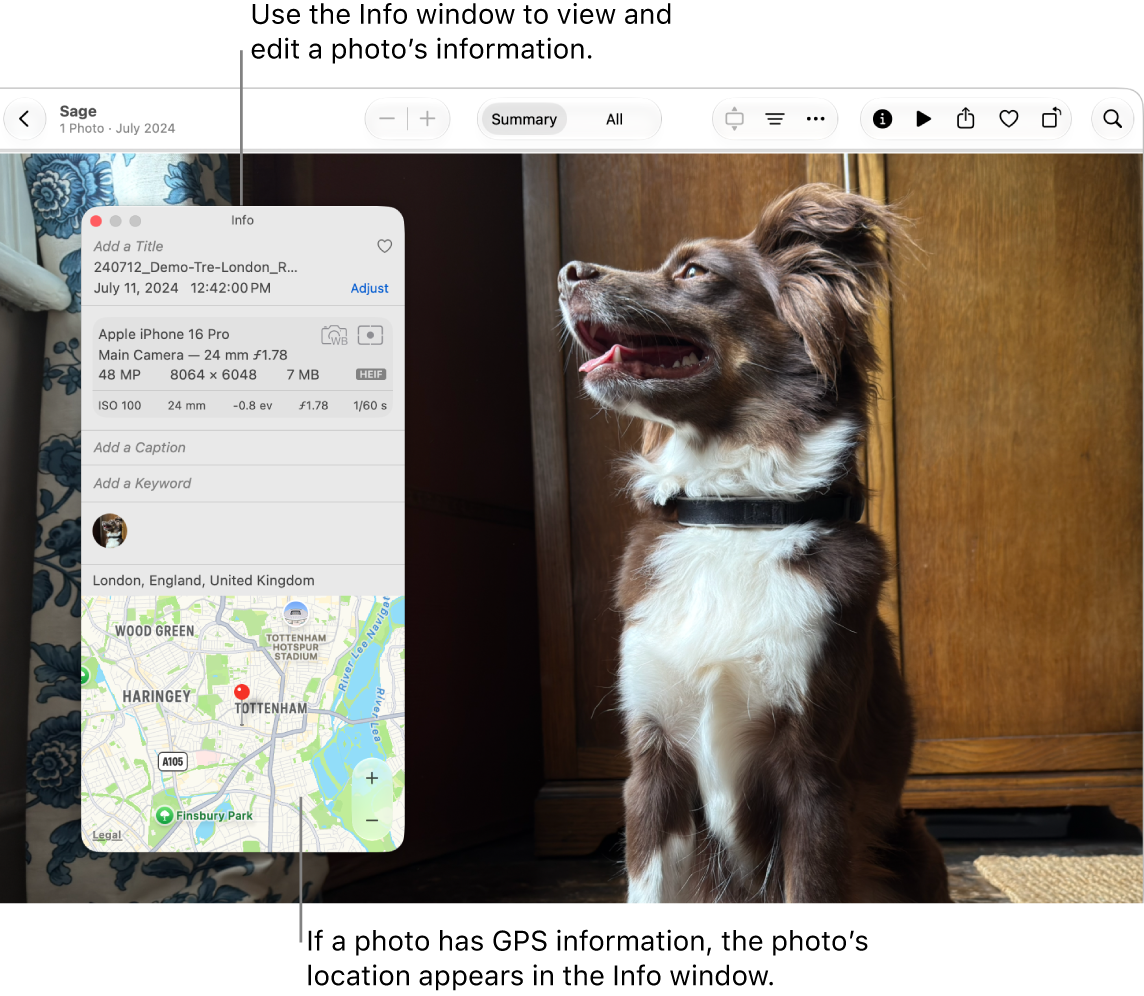
| Apple Photos | iPhone camera roll, family albums, travel memories | Date timeline, faces, map locations, iCloud sync | No source URL field, no color-strip workflow, work inspiration clutters personal memories |
| Finder Folders (+ Quick Look / ApolloOne) | Client shoots, RAW archives, deliverables on external SSDs | Folder path (YYYY/YYYY-MM_Project) and filenames |
Bad for cross-project inspiration; timestamps like IMG_4821.JPG hide why you saved an image |
| Linger (Private Reference Library) | Visual references, material/lighting photos, editorial scans, UI captures | Automatic color palette, local OCR, optional model machine tags & facets, Source URL, optional Feeling note & Project Canvases | Not for RAW editing, face recognition, or iCloud family syncing (Apple Silicon macOS 14+ only) |
Want to compare standalone Mac photo browsers side by side? See our Mac image organizer comparison covering Apple Photos, ApolloOne, Adobe Bridge, XnView MP, and Linger.
Why mixing design reference photos into Apple Photos breaks both workflows
Coming from working as a photographer and audiovisual editor, personal albums, dated RAW shoot directories in Finder, and working creative inspiration never belonged inside the same library—dropping brand lookbook frames, typography captures, and web screenshots straight into Apple Photos or a messy Downloads folder slowly ruins both.
- Camera dates do not match how creative recall works. Six months later, you never remember whether you snapped that warm ceramic glaze in March or October—you remember the muted terracotta color, matte surface, or lighting mood.
- Context vanishes from downloaded photos. A saved image in Apple Photos or Finder rarely keeps the original webpage URL, color palette, or visual relationships to other saves.
- Your camera roll gets noisy and expensive. Syncing hundreds of work screenshots and reference photos through iCloud fills your phone storage and interrupts personal memories with client research.
A 10-minute workflow to separate creative references from personal photos
You do not need to reorganize five years of old photos in one weekend. Start forward-only and pull in only what you actively reuse.
- Draw one clear line today. Personal life and iPhone shots stay in Apple Photos. Client deliverables and raw shoots stay in dated Finder folders. Anything saved for visual taste, mood, layout, color, or craft goes into a dedicated local reference library.
- Export only active reference keepers. Export the reference photos you still use from Apple Photos, then drag the exported files or references already in Finder into Linger. Linger keeps managed copies inside its flat local library and leaves your original Finder files untouched.
- Let zero-config local indexing replace manual filing (AI optional for Recall). Like Obsidian keeps plain files locally under your control, Linger keeps 100% of your media and inspectable SQLite index offline on your Mac (one click on Reveal in Finder opens the folder)—except color palettes and local Apple Vision OCR work out of the box without plugins or API keys. Optionally connect free local Ollama or your own vision model in Settings when you want deeper machine-tagged Recall, and capture from Chrome, Edge, Arc, or Brave with original Source URLs preserved.
- Group active work on an exportable Project Canvas. Instead of duplicating photos across three client folders, pull related references onto a persistent Project Canvas, compare them side by side, and export straight to PDF, SVG / Figma, Copy SVG, or DESIGN.md.
If screenshots are an even bigger part of your clutter than camera photos, pair this guide with our Mac screenshot triage workflow for designers.
Keep personal photos tidy in Apple Photos in 5 minutes
Once work references stop leaking into your personal library, Apple Photos becomes dramatically easier to maintain.
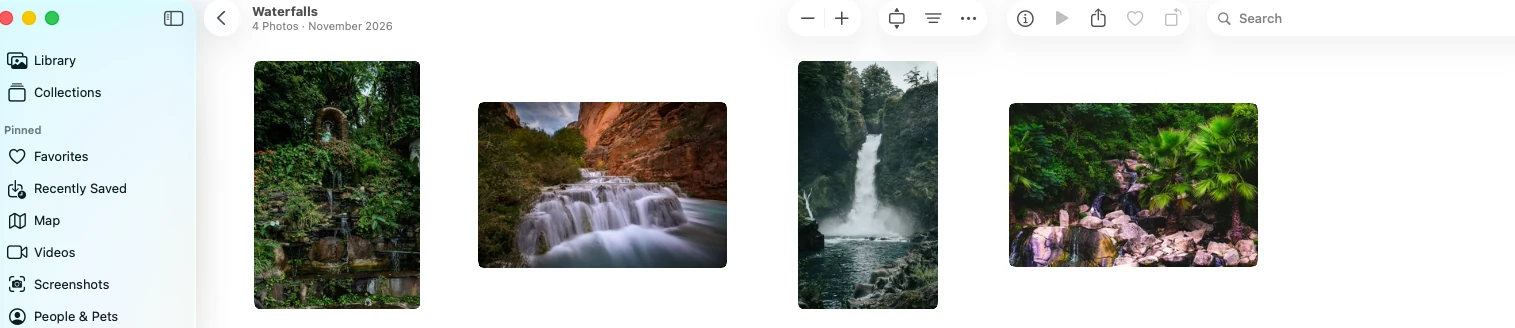
- Review duplicates after Photos finishes scanning. Open Utilities → Duplicates in the Photos sidebar to review any matches before merging (removed items stay in Recently Deleted for 30 days).
- Sweep phone screenshots regularly. Open Media Types → Screenshots to delete expired receipts, temporary codes, and accidental captures in one pass.
- Nest Albums inside Year Folders. Create top-level Folders by year (
2025,2026) and drag event albums inside them so the sidebar stays readable. - Spot unsorted photos with one Smart Album. Choose File → New Smart Album on Mac and set Album → is not → Any. Because adding a photo to an album never removes it from Recents, this gives you a live queue of what still needs sorting (Mac Smart Albums do not sync to iPhone or iPad).
Keep camera shoots & backups safe in Finder
For external SSDs, client deliveries, and RAW shoots where you want plain files on disk, start with four habits.
- Turn Finder into a clean dark contact sheet for free. Inside any flat shoot folder, press ⌘A to select your candidate frames, then press Space to open Quick Look and ⌘Return to show the Index Sheet. That distraction-free dark canvas lets photographers check pacing, color balance, and sequence pairs cleanly before touching extra software.
- Use a flat chronological folder rule. Group by year, then date-prefixed event folders (
2026 / 2026-07-14_StudioShoot) so alphabetical sorting automatically equals chronological order. - Use an in-place Mac viewer when Quick Look slows down. Browse those exact Finder folders without importing using ApolloOne, Adobe Bridge, or XnView MP.
- Remember that iCloud Photos is sync, not backup. Deleting a photo on one device removes it across every synced device. Follow a simple 3-2-1 habit for both your personal archive and local reference library by keeping full originals on your Mac, running continuous Time Machine backups to an external drive, and keeping one off-site copy.
Frequently asked questions
Should I organize photos on Mac in Apple Photos or Finder?
Keep personal and iPhone photos in Apple Photos so people, places, and timeline search work automatically. Keep client shoots, RAW files, and deliverables in dated Finder folders (YYYY/YYYY-MM_Project), optionally browsed in place with ApolloOne or Adobe Bridge. Keep visual inspiration and reference photos in a dedicated private library so they never pollute either one.
Why shouldn’t I store design references and moodboard photos in Apple Photos?
Apple Photos organizes by camera date, face, and location—none of which help when you are trying to find a typography specimen, ceramic texture, or editorial layout six months later. Mixing work references into your camera roll also fills iCloud storage and clutters personal memories.
Does importing reference photos into Linger move or modify my Finder folders?
No. Linger stores managed copies in its local library on your Mac and leaves your original Finder files and folder structure untouched.
Why do photos stay in Recents or Library after I add them to an album in Apple Photos?
Albums in Apple Photos are virtual views pointing back to your main Library, so adding a photo to an album does not move it. To find unsorted items on Mac, create a Smart Album (File → New Smart Album) with the rule Album is not any.
How do I copy my original photos from Apple Photos to a Finder folder?
Select the photos and choose File → Export → Export Unmodified Original, then pick a destination folder. This exports copies before Photos edits; use the regular Export command if you want the edited versions instead. See Apple’s Photos export guide.
Is iCloud Photos enough as a backup for my Mac photo and reference folders?
No. iCloud Photos is a sync service where deleting a photo on one device removes it everywhere. Keep full originals on disk and back up your Mac with Time Machine plus one off-site copy.