 linger
On this page
Start with what you actually tag.
Quick Verdict: If you need a personal vocabulary for design references on an Apple Silicon Mac — tags, a Feeling note, and a Source URL kept in a private local library, with optional AI left off — Linger is a fit. If you need Windows Explorer tagging, face recognition, XMP keywords in camera files, a shared team DAM, or an auto-tagging API, choose a tool built for that job.
We make Linger. This comparison focuses on the practical differences between keeping keywords inside a library and writing them into files or sidecars.
Fit
- Designers and researchers on Apple Silicon Macs (macOS 11+) who tag inspiration in words they expect to remember.
- You want notes and source links stored with the image, searched as saved text, without a monthly subscription.
- You prefer AI optional and off by default.
Not a fit
- Windows-only workflows, or an Intel Mac (an Intel build is not currently offered).
- Family or people tagging with face recognition (Tag That Photo and similar).
- Photography catalogs that must write XMP/IPTC into sidecars or files (Lightroom Classic, Excire Foto, digiKam, STAG).
- Shared team libraries, approvals, or version control (Daminion-class DAM systems).
- Auto-tagging APIs, SharePoint/Azure pipelines, or training-set annotation (the head term image tagging, not this page’s job).
- Built-in cloud sync, or importing an Eagle
.library/.eaglepack.
Choose Linger for a local Mac reference library centered on personal notes and source links. Choose Lightroom Classic for organizing and editing camera photos, or Excire Foto for searching a photo archive. TagThatPhoto focuses on people tagging on Windows; Eagle handles a broad mix of design assets. For keywords that other photography apps can read, look for configurable XMP or IPTC export.
The head term image tagging often refers to automated computer-vision APIs, cloud ingestion pipelines, or team DAM systems; for personal collections, organizing splits across your operating system, whether you work manually or automatically, and the type of images you handle:
- Family photo albums (manual or face-driven): names, relationships, events, and face grouping help you find people across the years on macOS or Windows.
- Camera archives (manual IPTC or automated XMP): EXIF records exposure details, while keywords and captions can be stored in catalogs, exported to IPTC/XMP, or generated locally into sidecars by tools like STAG.
- Design references (personal vocabulary): typography, layout, material, and mood describe what caught your eye. A source link and a short note help you return to the work and remember why you saved it.
Compare image tagging tools across real workflows.
Start with where you want to use the tags: inside one library, across photography apps, or in files delivered to a client.
| Tool | Tag Storage Location | Modifies Originals? | Tagging Philosophy | Operating System | Pricing Model | Best Suited For |
|---|---|---|---|---|---|---|
| Linger | Local library database | No; imports managed copies | Personal design vocabulary + subjective notes + source context | macOS | $39 Personal / $79 Lifetime (One-time) | Design reference curation & personal inspiration libraries |
| digiKam | Internal database + optional XMP sidecars | Optional metadata writeback | Keywords, captions, geolocation, and face tags | macOS, Windows & Linux | Free (Open-source) | Photo archivists who want detailed metadata controls |
| Adobe Lightroom Classic | Proprietary catalog (.lrcat) + optional XMP |
Optional embedded XMP or sidecars | Professional photography editing, keyword hierarchies, and ratings | macOS & Windows | Subscription; see Adobe plans | Professional photographers doing RAW processing and client shoots |
| Excire Foto | Internal database + optional XMP sidecar / IPTC embed | Optional metadata writeback | Automated AI computer-vision labels (objects, animals, scenes, faces) | macOS & Windows | One-time license; see Excire shop | Photographers organizing large camera archives and shoot files |
| TagThatPhoto | Database; optional XMP in JPEGs or sidecars | Optional XMP export on paid plans | Facial recognition, people tagging, and family genealogy | Windows | Free: 10 people; paid from $19/year | Family photo historians and genealogy archiving |
| STAG | XMP sidecar files (creates or appends); originals not altered | No (sidecars only) | Local automatic object/scene tags (recognize-anything), with a user prefix; intended as an aid, not a personal vocabulary | Windows, macOS & Linux | Free (Open-source, Apache-2.0) | Batch auto-tagging a local photography folder for other catalogs |
| Eagle | Local folder package hierarchy + JSON metadata | No; copies files into a managed library | Hierarchical folders, multi-format tags, smart folders, and ratings | macOS & Windows | $34.95 (One-time, 2 devices) | Designers managing heavy multi-format assets (3D, fonts, videos) |
In Lightroom Classic, metadata lives in the catalog first. Optional XMP writes use sidecars for proprietary RAW formats and embedded metadata for formats such as JPEG and DNG. Excire Foto also starts with a database; writing metadata to files is a separate action. TagThatPhoto offers optional XMP export on paid plans, embedding it in JPEGs and using sidecars for other formats. Open-source tools like STAG generate automated object and scene tags into XMP sidecars without altering originals, but automatic generic tags and a vocabulary you will remember are different jobs. Linger keeps notes and tags in its local library and leaves the external source files unchanged.
Keep the language you expect to remember.
Object labels and personal observations answer different questions. “Plant” can be a useful subject label; “quiet spacing around fine stems” records a relationship you may want for a new layout. Automatic descriptions can help name details, while your note explains why those details matter to you.
- Type: editorial serif, monospaced caption.
- Composition: wide margin, asymmetrical layout, negative space.
- Material: matte paper, blind deboss, grainy print.
- Your reading: quiet, austere, playful, or another word you would actually search for.
While batch auto-taggers like STAG or AI keyword tools generate hundreds of generic object labels, they cannot capture why an image felt relevant to your design work. Linger keeps your tags and Feeling note alongside the reference, while optional machine analysis remains separate (see our Recall setup guide for how optional, local visual recall works). In our Recall experiments, descriptions helped some searches but a text-first ranking also made results worse. Their usefulness depends on how they are produced and used, not simply on having more labels.
Choose by the job your tags need to do.
- Share keywords with other photography apps: choose a tool with XMP or IPTC writeback. Linger keeps its notes and tags in the library.
- Batch auto-tag local photos into XMP: use STAG to write automated scene and object tags into sidecars without altering originals.
- Organize a camera archive: digiKam offers detailed metadata controls; Lightroom Classic pairs cataloging with RAW editing.
- Find family members: use face grouping in Apple Photos, or TagThatPhoto on Windows.
- Tag images on Windows: use File Explorer for basic manual tags, TagThatPhoto for people, or Lightroom Classic and digiKam for photography metadata.
- Collect design references on a Mac: Linger brings images, source links, and your observations together. The desktop app supports Apple Silicon Macs (macOS 11+); an Intel build is not currently offered. A 14-day full trial is available with no card required.
- Coordinate a team: choose a shared DAM system with the permissions, approvals, and delivery tools your studio needs.
- Automate enterprise pipelines or model training: use dedicated image tagging APIs or SharePoint pipelines rather than a personal desktop reference library.
Tag a reference in words you will remember.
- In Linger, choose Add inspiration → Choose inspiration files. Select an image to add a managed copy to your library.
- In Memory, add a short Feeling note, a few Tags and the Source URL. Click Save.
- Open Recall, set scope to Entire library and type a word from the note. Saved-text matches appear as you type. Enter requests the separate image-recall path.
- Add the reference to a collection for the project or theme where you expect to use it.
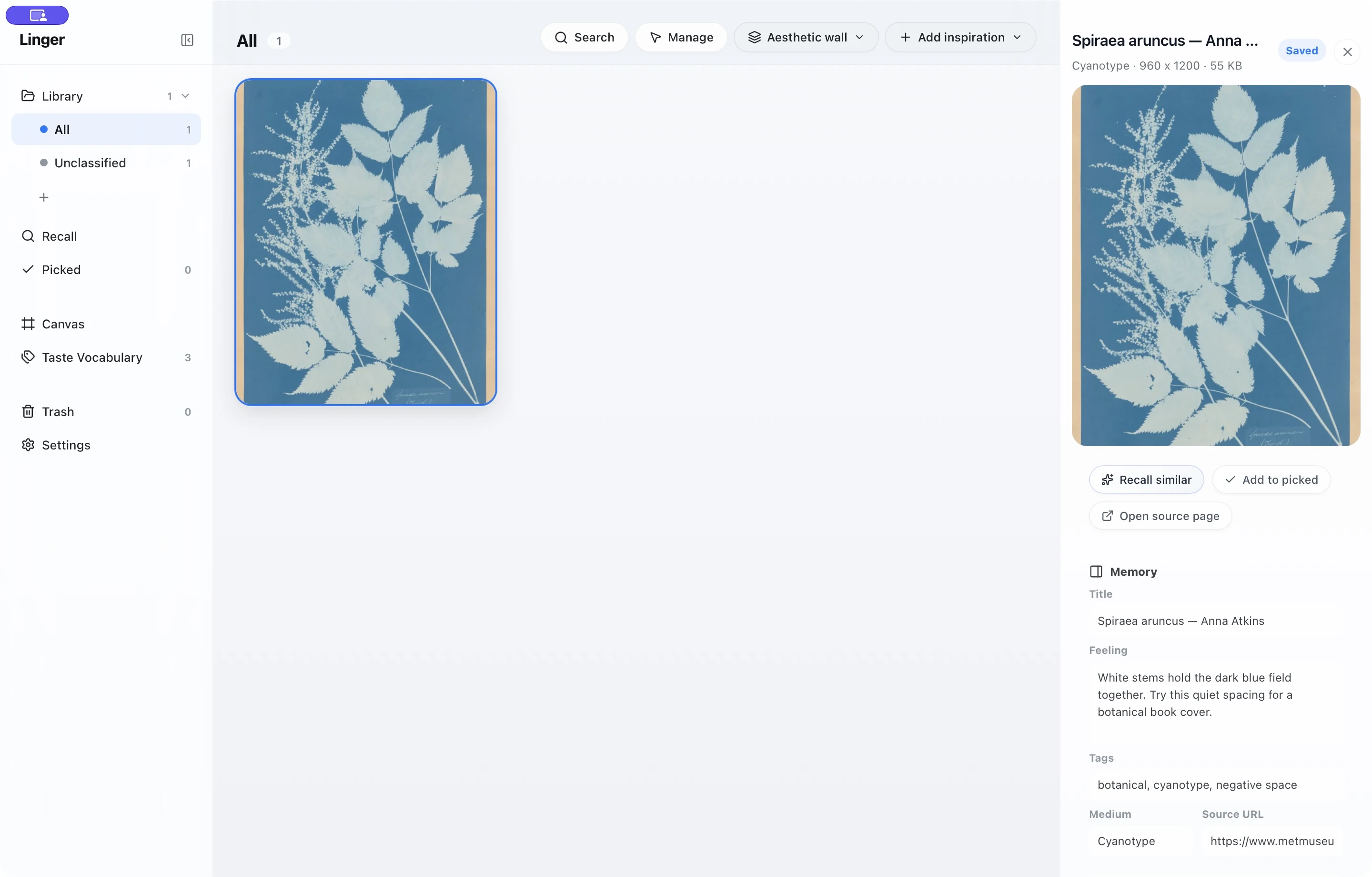
The note includes quiet spacing, so those words give you a useful way back to the reference. Choose a few specific clues that describe your interest in the image.
See the full organizing workflow for more examples. To search for visual details you have not written down, explore optional local recall, which uses a separately prepared runtime and model.
FREQUENTLY ASKED QUESTIONS
Image tagging software & workflow questions
What is image tagging?
Image tagging means adding keywords to help you find images again. Tags might name a person, subject, material, style, or project. Camera-generated EXIF details such as shutter speed are a separate kind of metadata.
What is the best way to tag photos?
Use a small, consistent vocabulary. For files moving between photography apps, store useful keywords in supported embedded metadata or XMP sidecars. For a personal reference library, combine a few tags with a sentence about why you saved the image.
What is the best app to add tags to photos?
Choose Linger for personal design references on Mac, Lightroom Classic for a catalog with RAW editing, digiKam for detailed metadata controls, or TagThatPhoto for people tagging on Windows.
Can I use AI to tag images?
Yes. Automatic descriptions can add useful clues, but relevance depends on the model, the image and how the text is used in search. In Linger, model analysis is optional and off by default, and it remains separate from your notes. Experimental local image recall has separate setup requirements.
Does image tagging software alter my original files?
It depends on the app and its settings. Lightroom Classic and Excire Foto can keep metadata in a catalog or write it to supported files and sidecars. Linger imports managed copies and stores tags, notes, and source URLs in its local library, leaving external originals unchanged.
Can I tag images and search offline without an internet connection?
Once the app is set up, local library browsing, notes, tags and saved-text search work on your Mac. Email sign-in and trial or license setup require a connection. Optional external model tasks use the selected provider; experimental local recall needs its runtime and model installed first.
What is the difference between image tagging tools and photo organizing software?
The categories overlap: photo organizers also offer keywords, and reference libraries may use automatic labels. Choose by the work you do most often—finding people, editing camera photos, managing production files, or collecting design references with notes and sources.
How can I tag design references on Mac without paying monthly subscriptions?
Linger offers one-time Personal ($39, one person on two Macs) and Lifetime ($79, one person on four Macs) licenses. Personal covers 0.x and 1.x updates; later major upgrades are optional purchases. Lifetime includes future desktop major versions. External model services may have separate costs.
Can I export my images and metadata if I decide to switch?
Linger keeps managed image copies and saved context on your Mac. Keep the complete library folder, including its database and managed files, for a backup. When moving to another app, carry your notes and source links alongside the images; importing image files alone does not transfer the library’s records.
How do I tag images in Windows?
Linger is built for Apple Silicon Macs; there is no Windows app and an Intel Mac build is not currently offered. On Windows, File Explorer can attach manual tags to supported file formats. For identifying people in family photos, TagThatPhoto runs on Windows. For a local, automatic first pass that writes object and scene tags into XMP sidecars, STAG publishes Windows binaries. Lightroom Classic and digiKam are also available on Windows for comprehensive cataloging and metadata management.
Is there a free image recognition app?
If you are looking for free software that automatically assigns object and scene labels, digiKam (an open-source photo manager) and STAG (a local, open-source auto-tagger) are free options; Apple Photos and Google Photos also provide built-in recognition in their ecosystems. Linger is not a free image recognition tool: it is a paid, one-time Mac license following a 14-day full trial, and it does not ship general object or face recognition. Instead, Linger focuses on searching your own saved notes, titles, and tags without requiring a machine-learning model.